Objectives
- Clone and open the repository created or provided by the course setup
- Create and move between branches for focused changes
- Stage, commit, and inspect a small change
- Push and pull changes between the local repository and GitHub
- Make the reviewable work visible in a pull request
Copy The SSH Clone URL
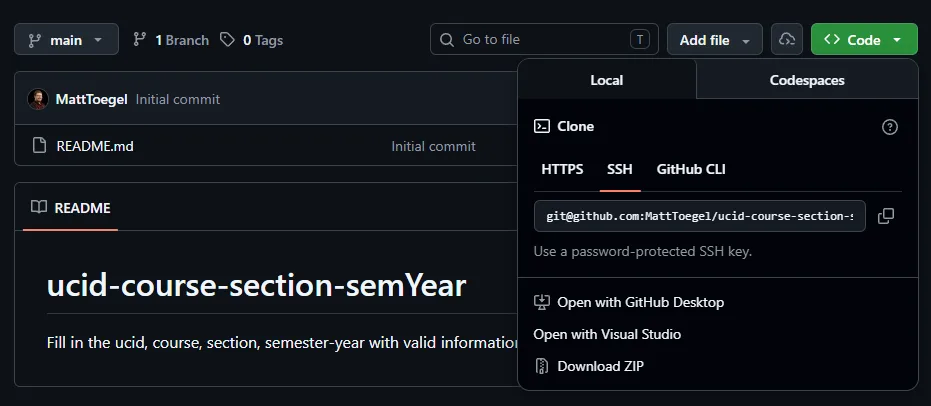
- Open the repository you created on GitHub
- Select the green Code button
- Under Local, select the SSH tab
- Select the copy icon beside the
git@github.com:...URL - Keep that URL ready for the slide below
- Use the SSH URL, not the HTTPS URL
- The copied value begins with
git@github.com:and ends with.git
Reconnect The SSH Key After A Break
If this is a new or resumed Git Bash session, start the SSH agent and load the existing course key before cloning:
eval "$(ssh-agent -s)"starts an SSH agent for the current Git Bash sessionssh-add ~/.ssh/github_keyloads the key created during the prior SSH setup lessonssh-add -lconfirms that the key is available
This reminder does not replace the earlier SSH setup lesson. Complete that lesson first if the key has not been created and added to GitHub.
Clone And Inspect In Git Bash
- Replace both placeholders with the GitHub username and repository name from the copied SSH URL
cd ~starts from your home directory so the repository is not cloned inside another repository- Clone once, then reopen that local folder for later work
git statusconfirms the branch and whether local work is cleangit remote -vconfirms thatoriginpoints to your own GitHub repository
Set Repository Identity
- Local settings apply only to the current repository
- Use the name shown on the GitHub account
- Use a verified email address from that account so GitHub can associate it with Git commits
core.sshCommandtells this repository to use thegithub_keySSH key- Confirm the values before creating the first commit
Work On A Branch
A branch is a separate line of work inside the same repository.
- Create a branch for one focused change instead of editing the primary branch directly (typically
main) - The active branch is where the next commit will be recorded
- Use a short, descriptive name such as
update-readme- Use lowercase letters, numbers, and hyphens instead of spaces
- Describe the work, such as
add-profileinstead ofupdates
Create And Move Between Branches
git checkoutis the command used in these course examplesgit switchis a newer command with the same branch-navigation purposegit branch <name>creates a branch but does not move to it
Stage A Focused Change
- The staging area is the draft list of saved changes for the next commit
git addcopies the current saved version of a file into that list- Staging does not create a commit or send anything to GitHub, and it can still be changed before committing
- Review the staged diff before committing
Unstage Or Stop Tracking A File
git restore --stagedremoves a file from the next commit but keeps it on the computergit rm --cachedtells Git to stop tracking a file while keeping the local copy- Add files that should remain untracked to
.gitignore
Commit A Local Checkpoint
- A commit records the staged changes in the local repository history
- Use a short, meaningful commit message; Git normally rejects an empty message
git log --oneline -3shows the three most recent local commits, one per line- A commit stays local until a later push sends it to GitHub
Sync With GitHub
git pushsends local commits to the remote repositorygit pullretrieves remote commits and integrates them into the local branch- Run
git statusbefore pulling so the working folder is understood first
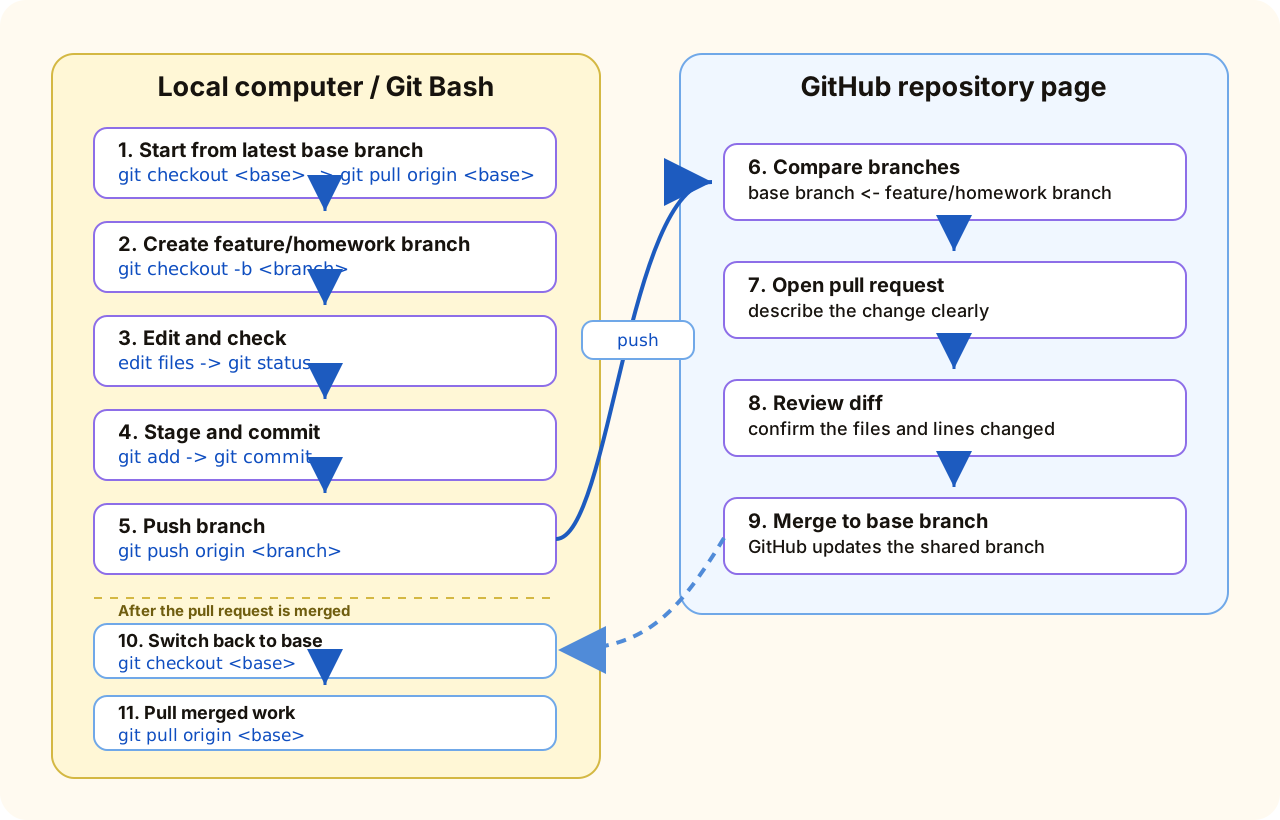
Complete The Review Loop
- Open a pull request from the feature branch into the primary branch your course specifies (usually
main) - Read the changed files before merging
- Merge only when the course workflow permits it
- After a merge, switch to the primary branch and synchronize it
Forced Issue 1: Create An Out-Of-Sync Branch
This controlled practice uses a separate practice-conflict branch. Do not use a graded branch for this exercise.
- Create and push the initial practice branch
- Change one line directly on GitHub and commit it to that branch
- Without pulling, change the same line locally and commit it
- Try to push the local commit
- Pull the missing remote commit, resolve the conflict, and push the resolution
The slides below walk through each step exactly.
Set Up The Practice Branch
Run this sequence once from the repository root:
- This starts from an updated
mainbranch - The initial
myFile.txtcontent islocal starting line - The branch now exists both locally and on GitHub
Make The GitHub-Only Change
- On GitHub, switch to the
practice-conflictbranch - Open
myFile.txtand changelocal starting linetoremote conflicting line - Commit the change directly to
practice-conflicton GitHub - Leave the local terminal open and do not pull yet
GitHub now has a commit that the local branch does not have.
Make The Local-Only Change
Without pulling the GitHub commit, run this locally:
The same line now has two different committed versions: one on GitHub and one locally.
Try Push Before Pulling
- Expected result: Git rejects the push
fetch firstmeans GitHub has a commit that the local branch does not have- Do not retry the same push or use a force push to bypass the protection
Pull The Remote Change
- Pulling retrieves the GitHub commit that the local branch is missing
- Git merges automatically when the changes do not overlap
- In this forced example, both commits changed the same line, so Git pauses with a conflict
Forced Issue 2: Merge Conflict
After the pull, Git cannot decide which version of the edited line to keep.
HEADmarks the current local version- The lower section is the incoming GitHub version
- Git pauses so you can choose the final content instead of guessing
Resolve, Commit, And Push
- Edit the file so it contains the final content you want
- Remove every conflict marker line
- Save the file, then stage, commit, and push the resolution
Verify The Resolution
- Run
git statusand confirm that no unmerged paths remain - Open the resolved file and confirm that no
<<<<<<<,=======, or>>>>>>>markers remain - Confirm that GitHub shows the resolved commit on the same branch
Course Repository Overview
| Course | Repository | Current starting point |
|---|---|---|
| IT202 | <ucid>-it202-<section>-<term><year> | Download the template ZIP; see the IT202 slide below |
| IT114 | <ucid>-it114-<section>-<term><year> | Existing personal clone is established |
| IT490 | Shared team repository provided by the instructor | Follow current course instructions |
| IT265 | <ucid>-it265-<section>-<term><year> | Follow current course instructions |
The above applies to the courses and sections I teach; other instructors may do things differently.
Cloning creates a local copy of a repository and its Git history. Starter content may instead be copied or introduced by course-specific setup. Do not treat those as the same operation.
IT202: Internet Applications
- Create the personal IT202 repository first
- Download the IT202 course repository as a ZIP file; do not fork it
- Extract the ZIP, then copy the template files and folders into the personal repository
- Use the course-local setup for branch names, collaborators, and later environments
IT114: Java Advanced Programming
- Course setup materials begin from an existing personal repository clone
- Copy the
.gitignorefile from the IT114 course repository into the personal repository - Use the course-local setup for starter content, ignore rules, branches, reviewers, and checkpoints
IT490: Systems Integration
- Use the shared team repository provided by the instructor
- The current shared materials do not define one canonical starter-repository URL or base-branch name
- Follow the current IT490 course setup and assignment instructions before adding starter files or configuring automation
IT265: Game Architecture And Design
- Create a personal repository following the shared name pattern
- Start with a
Docs/folder for development-log entries and other text-based activities - The current shared materials do not define one canonical starter-repository URL or base-branch name
- Follow the current IT265 course setup and assignment instructions before adding course work
Common Troubleshooting
| Problem | Solution |
|---|---|
not a git repository | Run pwd. If you followed the earlier setup, run cd ~ and ls to find the repository folder, then cd <folder> and run git status again |
| Push rejected | Inspect git status, the current branch, and git remote -v before pulling or retrying |
| Wrong remote | Run git remote -v and correct the URL before pushing |
Generated files or secrets appear in git status | Update .gitignore, then remove the files from staging or tracking before committing |
Knowledge Check 1/2
Questions
- What does
git add README.mddo? - What does
git commitdo? - What does
git pushdo?
Answers
- It selects the saved README.md changes for the next commit
- It records the staged changes as a local checkpoint in repository history
- It sends local commits from the current branch to GitHub
Use Next to reveal each answer
Knowledge Check 2/2
Questions
- What is the purpose of a pull request?
- What does
git pulldo after a pull request is merged?
Answers
- It provides a GitHub page to compare, review, and merge a branch into the primary branch
- It retrieves the merged remote changes and integrates them into the local primary branch
Use Next to reveal each answer
Git Flow Diagram
Key Terms And Further Learning
- Staging area: The selected file changes that the next commit will record.
- Commit: A local checkpoint of staged changes.
- Pull request: A GitHub comparison and review before a branch is merged.
Further Learning:
Summary
- Clone once and always open the repository root
- Create a branch for one focused change
- Stage the intended file with
git add README.md - Create a local checkpoint with
git commit -m "Describe the change" - Send the branch to GitHub with
git push origin <branch> - Open and merge a pull request, then use
git pull origin <primary-branch>locally
Follow the course-specific setup slide for starter files and branch rules