Objectives
- Explain the difference between local Git and GitHub
- Connect GitHub with an SSH key without sharing private credentials
- Name a personal course repository consistently
Git And GitHub Have Different Jobs
- Git records file history, commits, and branches on your computer
- GitHub hosts a remote copy of the repository and its pull-request discussion
- An SSH key lets Git authenticate to GitHub without entering a password or access token for each push
- Your GitHub username identifies the account; your assigned UCID identifies course work and may be different
- Never upload, email, or paste a private SSH key
- Create a GitHub account or sign in before continuing to the next slide
Name The Repository
Use this lower-case pattern:
name-the-repository-01.txt
Loading code...
ucid: your assigned NJIT UCID, written in lower casecourse: a course ID such asit202,it114,it490, orit265- Term codes:
sspring,msummer,ffall,wwinter - The example is a pattern; replace it with your own UCID, enrolled course, and term
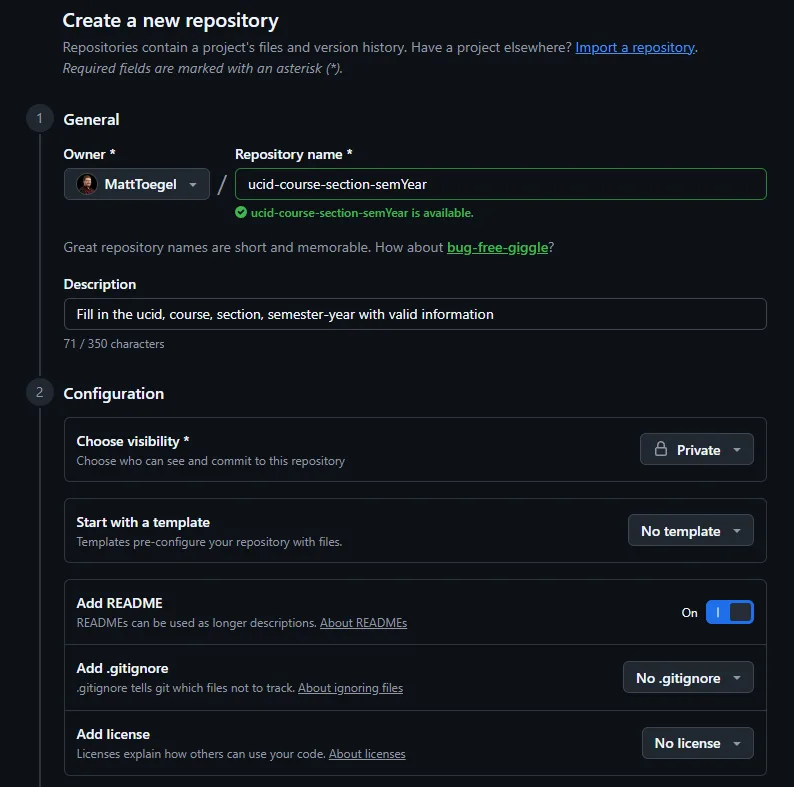
Create It On GitHub
- In GitHub, open the
+menu in the upper-right corner - Choose
New repository - Choose your personal account as the owner
- Enter the repository name in this format:
<ucid>-<course>-<section>-<term><year> - Set the repository visibility to
Private - Turn on
Add README - Select
Create repository
Use the course-specific setup before adding starter files or choosing an initial branch.
Connect With SSH
connect-with-ssh-02.sh
Loading code...
- Add the displayed public key, ending in
.pub, to your GitHub account - Keep the matching private key on your computer
- Use the named
github_keypair so this setup does not overwrite or reuse another SSH key - Follow the slides below to add the public key to GitHub before testing the connection
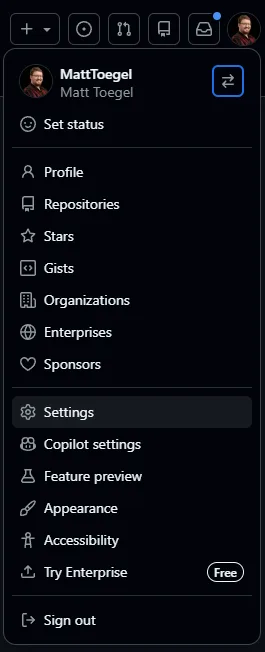
GitHub: Open Settings
- In GitHub, open your profile menu in the upper-right corner
- Select
Settings
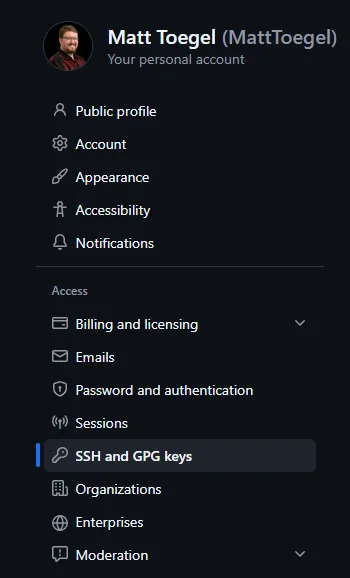
GitHub: Open SSH And GPG Keys
- In the Settings sidebar, find the
Accesssection - Select
SSH and GPG keys
You can also open github.com/settings/keys after signing in.
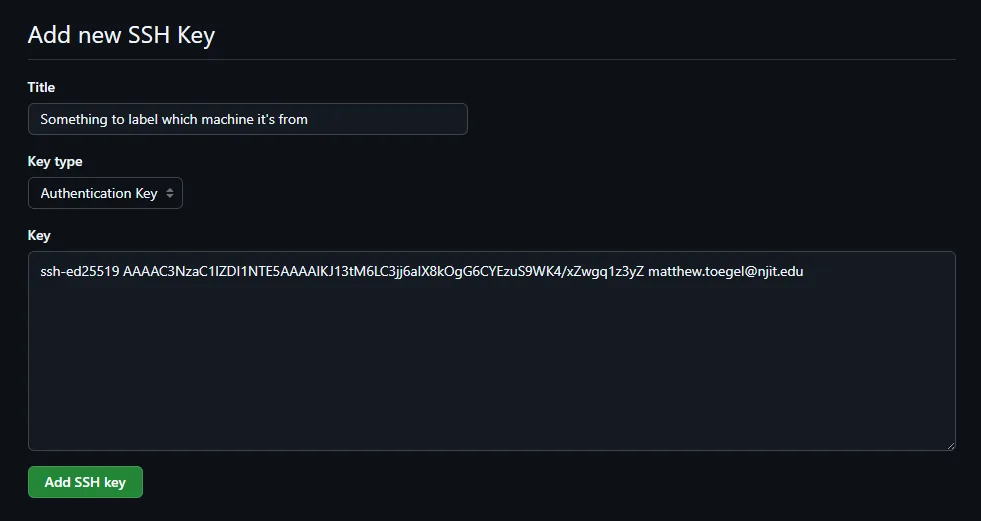
GitHub: Add The Public Key
- Select
New SSH key - Give the key a title that identifies this computer, such as
Personal laptop - Keep
Authentication Keyselected - Copy the complete output from
cat ~/.ssh/github_key.pubinto theKeyfield - Select
Add SSH key
Never paste the private github_key file into GitHub.
Start The SSH Agent And Add The Key
start-the-ssh-agent-and--03.sh
Loading code...
eval "$(ssh-agent -s)"starts the SSH agent for the current terminalssh-addmakes the privategithub_keyavailable to Gitssh-add -lconfirms that the agent has loaded the key- The
~path starts from the home directory, so it avoids problems with spaces in the full folder path
Note:
If eval "$(ssh-agent -s)" fails in Git Bash, run exec ssh-agent bash, then repeat the ssh-add commands.
Test The GitHub Connection
test-the-github-connecti-04.sh
Loading code...
- Run this only after the public key has been added to GitHub
- A successful test identifies the GitHub account that accepted the key
- If the account is unexpected, stop and correct the account or key before cloning or pushing
Common Troubleshooting
| Problem | Solution |
|---|---|
Permission denied (publickey) | Run ssh -T git@github.com, then confirm the public key belongs to the signed-in GitHub account |
| Wrong GitHub account | Inspect the account shown by the SSH test before cloning or pushing |
| A repository already exists | Open the existing repository rather than creating another similarly named copy |
Knowledge Check 1/2
Questions
- What does local Git record?
- What does GitHub provide for a repository?
- What is the correct repository name for UCID
ab123, IT000, section 001, fall 2026?
Answers
- File history, commits, and branches on the local computer
- A remote repository and pull-request discussion
ab123-it000-001-f2026
Use Next to reveal each answer
Knowledge Check 2/2
Questions
- Which SSH key is safe to add to GitHub?
- Which command verifies the GitHub account connection?
- Why use a named
github_keypair instead of the defaultid_ed25519name? - What does
ssh-add -lconfirm?
Answers
- The public key ending in
.pub ssh -T git@github.com- It avoids accidentally reusing or overwriting another SSH key
- That the SSH agent has loaded
github_key
Use Next to reveal each answer
Key Terms And Further Learning
- Remote repository: A GitHub copy used to share and review repository history.
- SSH public key: The shareable half of a key pair that GitHub uses to recognize the account.
- SSH private key: The secret half that stays on the student’s computer.
Further Learning:
Summary
- Git records local history; GitHub hosts and reviews remote history
- Use a private repository named
<ucid>-<course>-<section>-<term><year> - Add only the SSH public key to GitHub and verify the connection