Objectives
- Distinguish Git from the terminal used to run it
- Install or confirm Git on Windows, macOS, or Linux
- Open the expected terminal for later examples
- Verify that Git and basic shell commands are available
Git And The Terminal Are Different Tools
- A terminal is the window where you type commands
- A shell reads those commands and runs programs
- Git is a program that records changes to files
- Windows users will use Git Bash for the shared Bash-style commands
- macOS and Linux users can use their built-in terminal applications
Windows: Install Git For Windows
- Download Git for Windows
- Run the installer
- Follow the selected settings in the slides below
- Finish the installation and open Git Bash from the Start menu
- Git for Windows installs both Git and Git Bash
- Windows Terminal and PowerShell remain available, but Git Bash is the expected shell for these examples
- The screenshots show Git for Windows 2.55.0; later versions may adjust wording or order
- See the slides below for the installer choices that affect later work
Windows Installer: Components
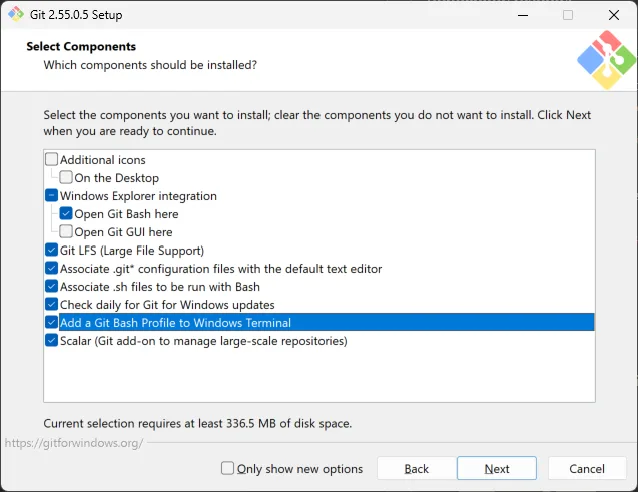
- Keep the selections shown
- Git Bash Here opens Git Bash directly inside a folder
- The Windows Terminal profile makes Git Bash available there as an optional profile
- Continue with Next
Windows Installer: Default Editor
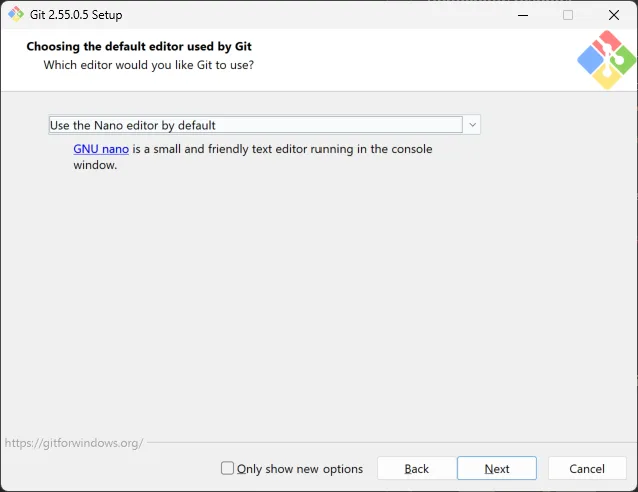
- Choose Use the Nano editor by default
- Nano is a beginner-friendly terminal editor and is easier to exit than Vim
- Git may open it when a command needs a commit or merge message
- VS Code will be configured separately in a later presentation
Windows Installer: Initial Branch
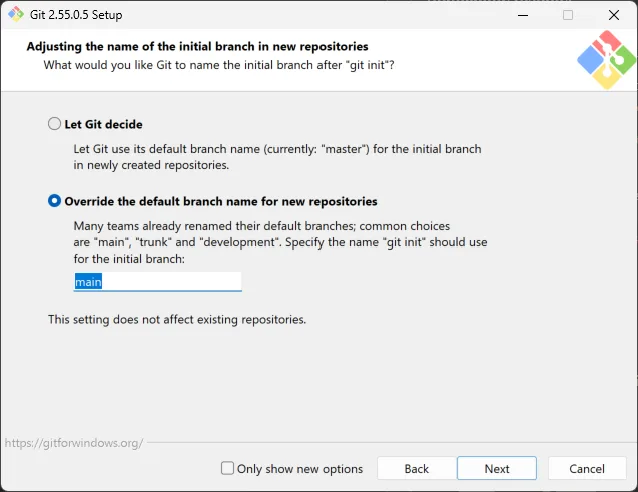
- Select Override the default branch name for new repositories
- Enter the branch name
main - This affects repositories created with
git init, not existing repositories - Later examples will identify other branches when they are needed
Windows Installer: Command-Line PATH
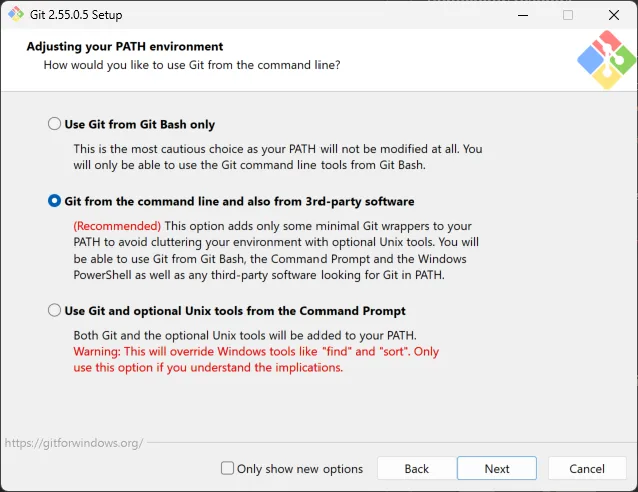
- Select Git from the command line and also from 3rd-party software
- Git should be available from Git Bash and other applications
- This also lets applications such as VS Code find Git
- Do not select the option that adds Unix tools to Command Prompt because it can override Windows tools
- Reopen terminal windows after installation so they receive the updated PATH
Windows Installer: HTTPS
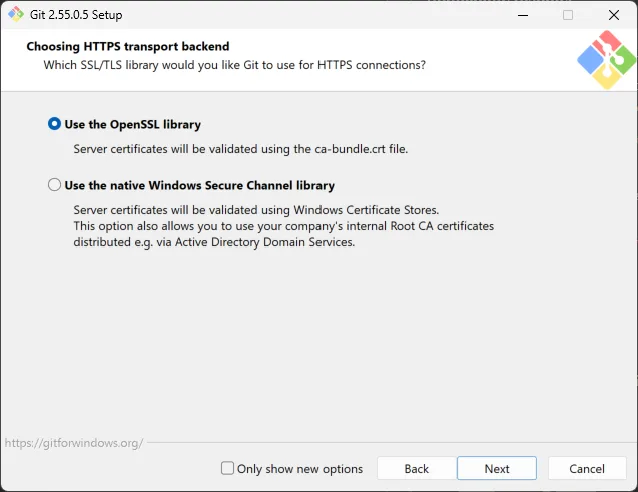
- Keep Use the OpenSSL library selected
- This is the normal cross-platform certificate option for Git for Windows
- The later GitHub workflow uses SSH, but Git and related tools may still make HTTPS requests
Windows Installer: Line Endings
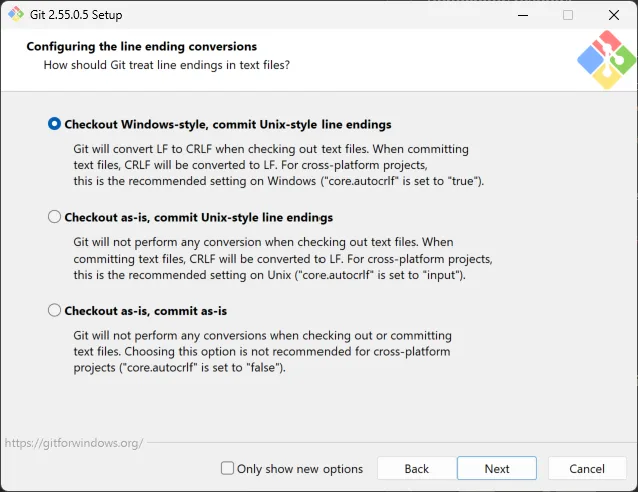
- Keep Checkout Windows-style, commit Unix-style line endings selected
- Working files can use Windows line endings while committed text is normalized to Unix-style line endings
- A repository's
.gitattributesfile can provide more specific rules later
Windows Installer: Terminal Emulator
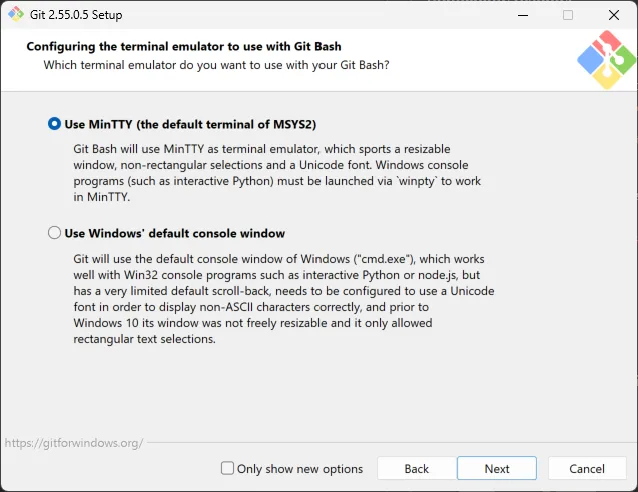
- Keep Use MinTTY selected
- MinTTY is the normal Git Bash terminal window
- Later Windows examples assume this Git Bash environment
Windows Installer: Pull Behavior
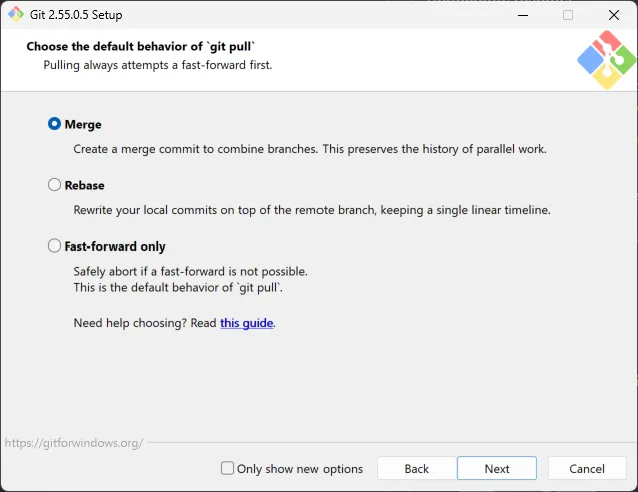
- Keep Merge selected
git pullwill fetch remote changes and merge them into the current branch when necessary- A later presentation demonstrates pulls, merges, and merge conflicts
Windows Installer: Credential Helper
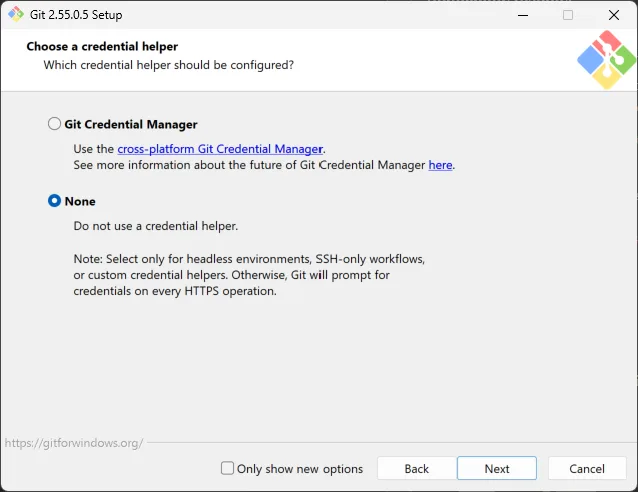
- Select None for this SSH-based GitHub workflow
- Git Credential Manager handles HTTP(S) authentication and is not used for SSH
- Leaving Git Credential Manager enabled would not break SSH, but it is unnecessary for this course path
Windows Installer: Extra Options
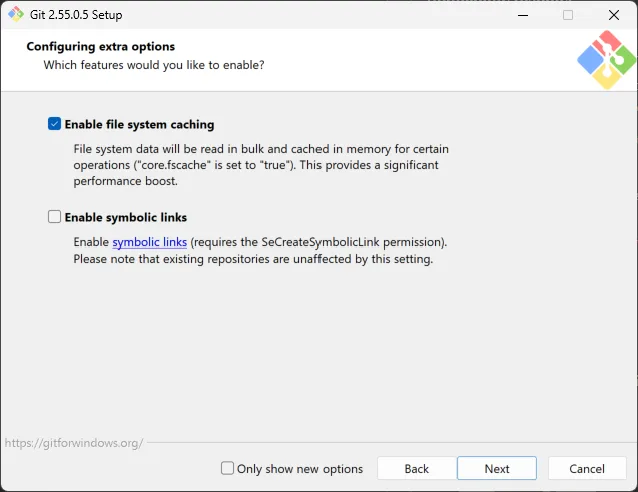
- Keep Enable file system caching selected
- Leave Enable symbolic links cleared because the course repositories do not require them
- Symbolic links need additional Windows support and should be enabled only when a project specifically requires them
- Finish the installer
Open The Expected Windows Shell
- Preferred: open Git Bash from the Start menu
- Folder shortcut: right-click a folder and choose Git Bash Here when that component is installed
- Windows Terminal can use a Git Bash profile when it is configured correctly
- Typing
bashin another Windows shell can start Git Bash when Git's Bash executable is the one found on PATH - This is not a reliable shortcut because another installed Bash program may be found first
- When WSL is installed,
bashmay enter WSL and use Linux paths such as/mnt/cinstead of Git Bash paths such as/c
macOS: Use Terminal
- Open Terminal from Applications > Utilities
- Run
git --versionto check whether Git is available - If macOS offers to install Command Line Tools, complete that installation
- The built-in Terminal is sufficient for every shared command
- See the slides below for manual installation and an optional terminal alternative
macOS: Install Git When Missing
macos-install-git-when-m-01.sh
Loading code...
- Use the command when
git --versionreports that Git is unavailable - Complete the Apple installer, then open a new Terminal window
- See the official Git installation options for macOS when the installer does not appear
macOS: Optional Terminal Alternative
- Optional iTerm2 adds features such as split panes, profiles, and additional customization
- The application is optional and does not change Git commands
- Start with the built-in Terminal unless you already prefer another terminal
Linux: Use The Installed Terminal
- Open the terminal application included with the distribution
- Run
git --versionto check whether Git is available - Install Git with the distribution's package manager when it is missing
- The installed terminal is sufficient for every shared command
- See the slides below for installation examples and optional alternatives
Linux: Install Git When Missing
Ubuntu or Debian:
linux-install-git-when-m-02.sh
Loading code...
- Other distributions use different package managers
- See the official Git installation options for Linux
- Open a new terminal after installation when the current one cannot find Git
Linux: Optional Terminal Alternatives
- GNOME Terminal, Konsole, Tilix, and other terminal applications can run the same Git commands
- Features and availability depend on the desktop environment and distribution
- Use the installed terminal when optional setup adds friction
Verify The Setup
verify-the-setup-03.sh
Loading code...
git --versionshould print an installed Git versionpwdshould print the terminal's current directory- Windows users should run both commands in Git Bash
- Continue only after neither command reports "command not found"
Common Troubleshooting
| Problem | Solution |
|---|---|
git: command not found | Install Git, close the terminal, then open a new terminal window |
| Git works in one terminal but not another | Restart the intended terminal after installing Git |
| Windows opens PowerShell or Command Prompt | Open Git Bash from the Start menu or select its configured terminal profile |
Running bash opens WSL | Exit that shell and open Git Bash directly so Windows paths use the expected format |
git --version works but pwd does not | Confirm that Windows is using Git Bash |
Knowledge Check
Questions
- What does Git do, and what does the shell do?
- Which terminal should Windows users use for these lessons?
- Which terminal should macOS and Linux users use?
- How do you make a program accessible from the terminal on Windows, macOS, and Linux?
- What is the purpose of running
git --versionandpwdin this lesson?
Answers
- Git tracks changes and file history; the shell reads commands and runs programs
- Windows users should use Git Bash; not PowerShell or Command Prompt
- macOS and Linux users can use their built-in terminal applications
- Installers on Windows, macOS, and Linux should add the program to
PATH. If needed, add its folder manually; on macOS or Linux, update~/.zshrcor~/.bashrc git --versionverifies that Git is installed and accessible;pwdverifies that the shell can report the current directory
Use Next to reveal each answer
Key Terms And Further Learning
- Git: A tool that records changes to files and their history.
- Shell: The program that reads commands in a terminal.
- PATH: The locations the shell searches for commands such as
git.
Further Learning:
Summary
- Install Git before beginning the CLI and GitHub workflows
- Use Git Bash on Windows and the built-in terminal on macOS or Linux
- Keep the Windows installer choices aligned with
main, command-line access, merge-based pulls, and the course's SSH workflow - Treat alternative terminal applications as optional
- Verify the setup with
git --versionandpwd